* SiK Radio?
드론에 연결하는 송수신기로, GCS(Base Station)과 드론과의 통신을 담당한다.
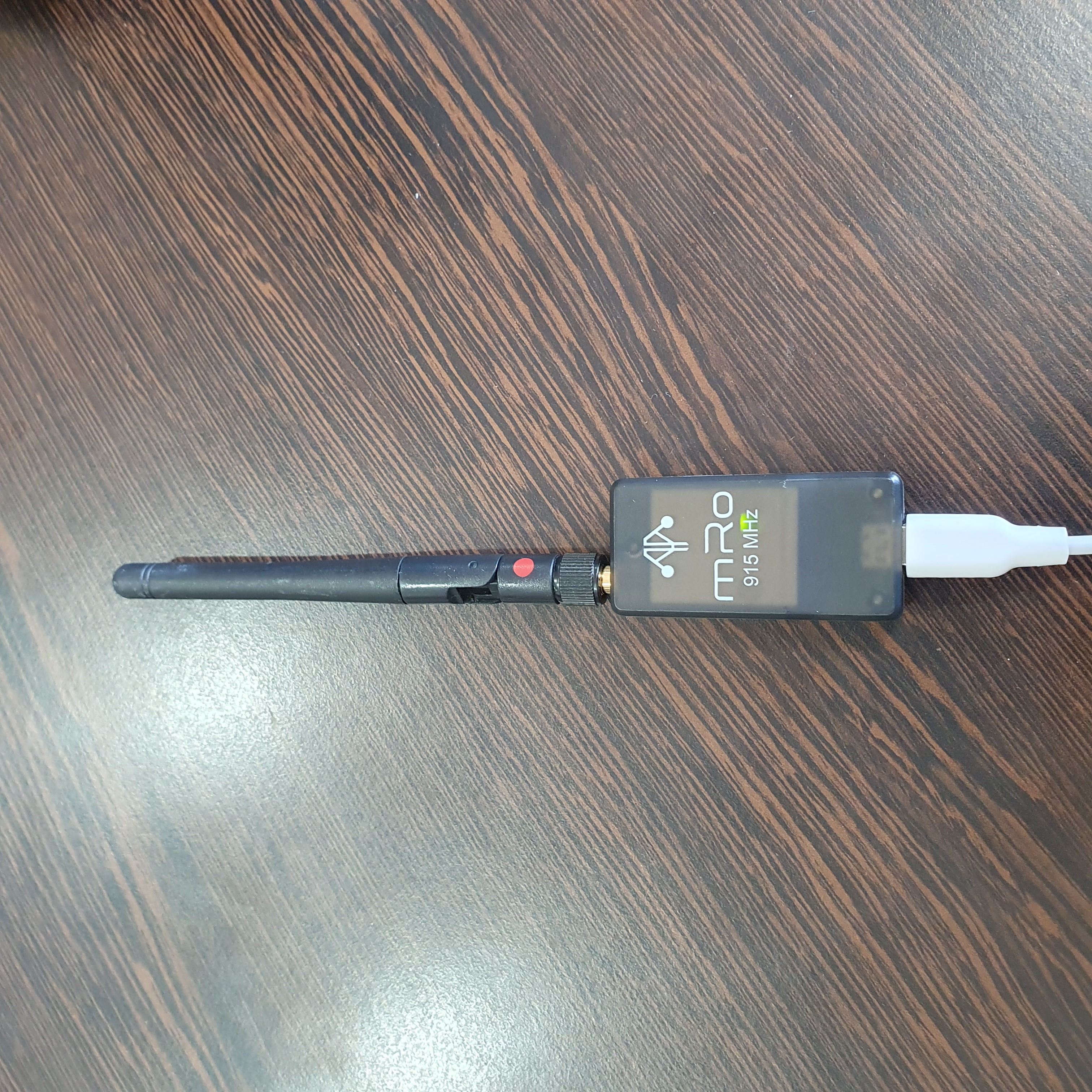
*설치 환경 및 제품
OS : Windows 11
SiK Radio : MRO 915MHz
* 페어링 방법
1. Mission Planner 다운로드
아래 링크를 눌러서 설치 파일 다운로드 후 실행
https://firmware.ardupilot.org/Tools/MissionPlanner/MissionPlanner-latest.msi
- 관련 사이트
https://ardupilot.org/planner/docs/mission-planner-installation.html
Installing Mission Planner — Mission Planner documentation
Mission Planner was designed for native Windows installation. However, it is possible to use it under Linux (with some occasional issues) and there is a Beta version for Android OS. Mission Planner on Linux It is possible to run most Windows based programs
ardupilot.org
2. SiK Radio에 전원 연결
- 1개는 드론에, 나머지 1개는 컴퓨터에 연결
- 컴퓨터와 드론에 연결된 SiK Radio 모두에 전원이 들어와 있어야 함
3. Mission Planner 실행
4. 설정 -> 추가 하드웨어 -> Sik 무선 신호 클릭
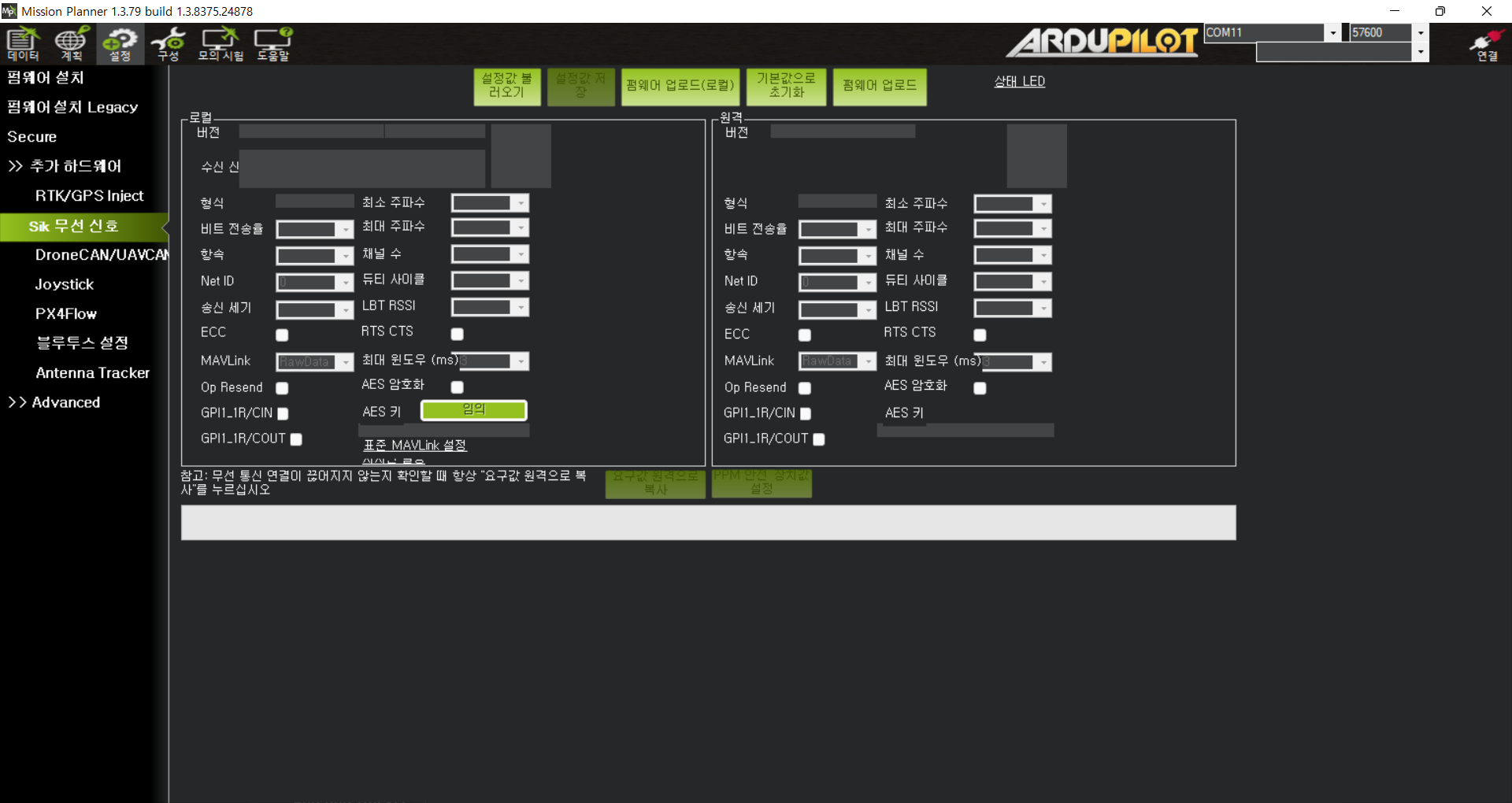
5. Com port 선택, 대역폭 57600 설정 후 '설정값 불러오기' 선택
- 연결 버튼은 클릭하지 말아야 함. 연결이 끊어진 걸 확인하고 진행
- (TroubleShooting) usb type-B Micro(5핀)으로 연결할 때, 단순 충전용이 아닌 데이터 전송용 사용해야 함.
6. Net ID를 변경
- 기본 설정은 25. 다른 송수신기와 겹치지 않기 위해 고유한 번호 설정
7. '요구값 원격으로 복사' 클릭
8. 저장
끝
* 아래 해외 사이트에 더 자세한 설명이 있음.
- 출처, 설정 방법 사이트
Configuring a Telemetry Radio using Mission Planner — Copter documentation
Tx Power (default 20) : the transmission power where 1=1.3milliWats, 2=1.5mW, 5=3.2mW, 8=6.3mW,11=12.5mW, 14=25mW, 17=50mW, 20=100mW. This should be set to conform with your local regulations. Some per-country information is linked here.
ardupilot.org
'Drone' 카테고리의 다른 글
| [Mavros] The way to connect 'kakute h7 v2' with onboard computer using MAVROS (0) | 2023.03.24 |
|---|
